How to make your Garmin watch easier to read
If you have to squint — or find your glasses — just to check the time, the problem is almost always the watch face, not your eyes. Here's how to get big, high-contrast numbers you can read at a glance.
Modern Garmin watches pack an enormous amount onto the screen: seconds, date, steps, heart rate, weather, a couple of gauges. It looks great in the product photos. It's also why a lot of people — anyone over 45, anyone with tired or weaker eyes, anyone glancing down mid-task — can't read the time without stopping and focusing. The information is there; it's just small.
Why you can't just make the font bigger
Garmin doesn't offer a "larger font" setting for the watch face. The built-in faces are designed as fixed layouts, and system accessibility options affect menus, not the clock you see all day. So the only real lever you have is to change the watch face itself to one built around size and contrast instead of density.
What actually makes a watch face readable
Three things do most of the work:
- Digit size. The time should use the largest digits the screen can physically draw, not a medium font surrounded by widgets.
- Contrast. Light figures on a near-black background are the easiest to read, indoors and out. Some people read yellow or cyan on black better than white.
- Less clutter. Every extra element competes for the space that could make the time bigger. A readable face shows the time, the date, and maybe one or two things you actually use.
A free watch face built for exactly this
Big & Clear is a free Connect IQ watch face designed around those rules. It shows the time in the largest, highest-contrast digits your watch can render, with the date in large letters underneath. You get five high-visibility colour schemes — white, yellow, cyan or green on black, plus black-on-white for bright daylight — and two optional data fields (steps, heart rate, battery or calories) that you can also switch off completely for the cleanest possible look.
It asks for no permissions, collects no data, and everything is set from the Connect IQ phone app — no fiddling with menus on the watch.
How to set it up
- Install Big & Clear from the Connect IQ store.
- In the Connect IQ phone app, open the face's settings and pick a colour scheme — try yellow-on-black first; most people find it the easiest.
- Turn the two data fields on or off to taste, and set it as your active watch face.
If your device isn't listed
Connect IQ apps support specific watch models. If yours isn't supported yet, that's usually a quick fix — leave a review or contact the developer with your model and it can be added. The same face works across most recent Forerunner, Fenix, Venu and Vivoactive watches.
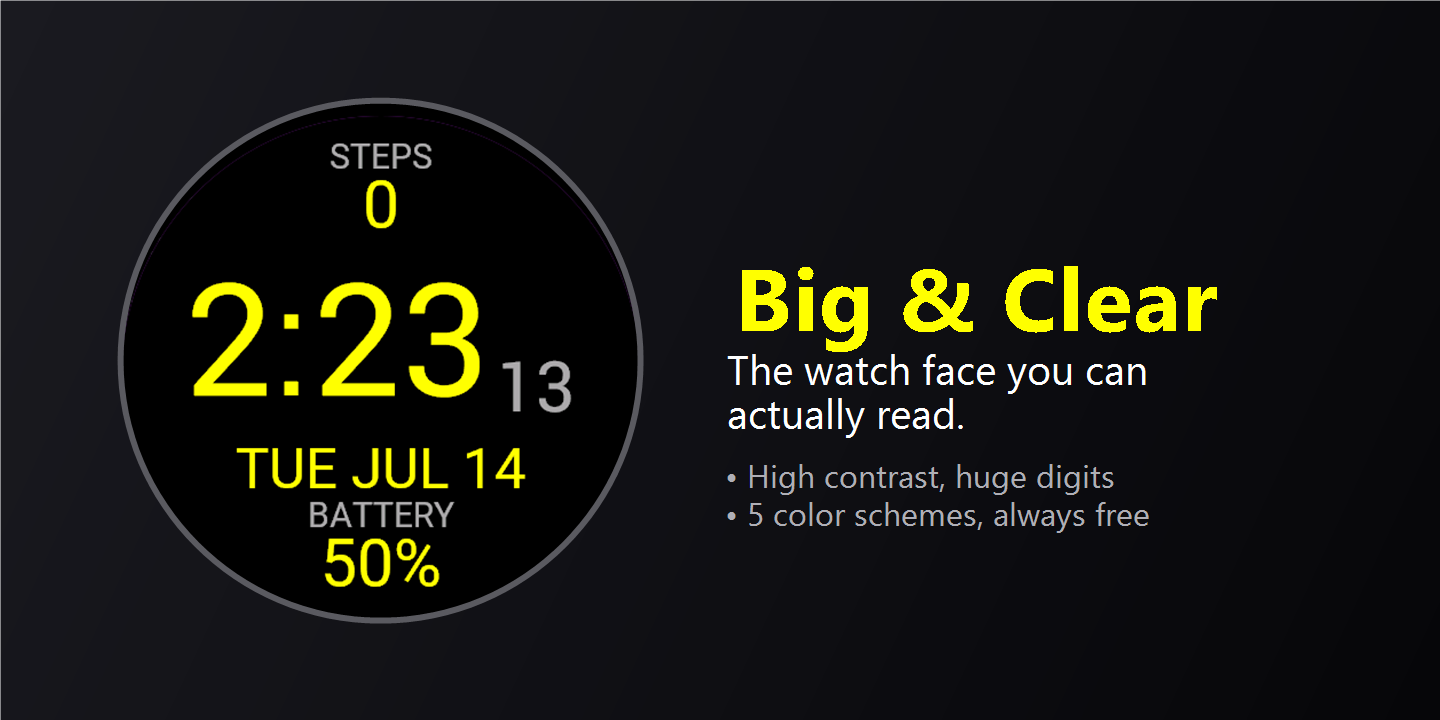
Big & Clear
Free Garmin watch face. Huge, high-contrast time, five colour schemes, optional data fields — no permissions, no data collected.
Free, and it stays free
Big & Clear has no paywall and collects no data. If it earns a place on your wrist, you can support the next update.